BEATCA stands for Bayesian and Evolutionary Approach to Text Connectivity Analysis. It has been created under the KBN research project 4 T11C 026 25 "Conceptual maps and intelligent navigation in WWW using Bayesian networks and artificial immune systems ".
It represents a new approach to document collection analysis and search in the main stream of so-called "landscape metaphor". BEATCA applies new concepts for document maps generation, including map stabilization and navigation based on large scale Bayesian networks techniques called ETC and new concepts of map cell filling based on Growing Neural Gas and Artificial Immune Paradigms combined with WebSOM approach.
BEATCA may be considered as a search engine with document map type user interface, dedicated for small collections of documents (a couple of millions at present).
In this document we describe how to navigate through a document collection, when it has been processed by BEATCA spider, indexer and mapper modules and is ready for navigation using the informator system.
The navigation utilities are made available via a WWW server (TomCat) hence to access the search engine, you need to know its URL address, which you need to type into the location window of a WWW browser (e.g. MS Internet Explorer).
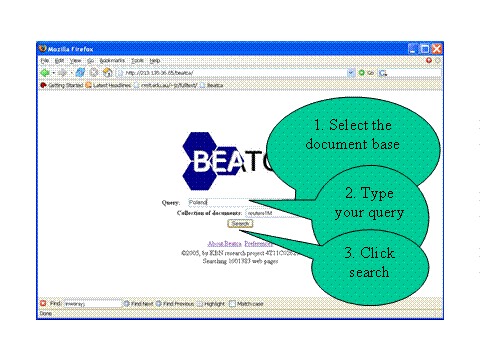
BEATCA enables navigation through several document collections, so first You have to choose one from the list. Then you have to type the search terms (one or more words) and click "search" button.
BEATCA responses to a query with the screen visible below.
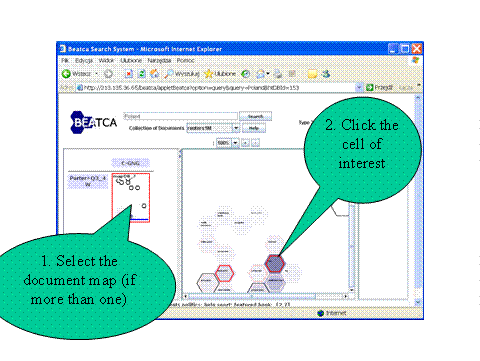
You see four principal areas there: one at the top (control area) and three below it (map set area to the left, map area in the center, and information area to the right).
The control area (at the top) allows for submission of new queries, for enlargement/decrease in size of the map area scale, and for viewing the document map in three dimensions (on a sphere, on torus and on cylinder). Note that if you double-click the window for search terms, a list of most relevant associated terms becomes visible.
The map set area (to the left) shows the maps available for a given collection of documents. For a given document collection several maps can be generated, just showing its content from different perspectives. These perspectives may be either due to different parameter settings, by selected map cell shape (square or hexagonal) or may difffer more fundamentally by technology used (e.g. growing neural gas, or WebSOM, of contextual maps etc.). By default, the system selects the map most suitable for the query of the user. However, by clicking into the appropriate map icon, the user can express the preference to use another map.
The map area (in the center) displays the map selected. The document map cosists of document cells, each of them is labelled with the most appropriate word/phrase reflecting its content. The cells are shaded according to document density within it. The darker the cell the more documents it contains. The cells have "borders" around them expressing the relevance to user query. Cells containing most documents relevant to user query have red borders. Those with fewer, but still "numerous enough", have green borders.
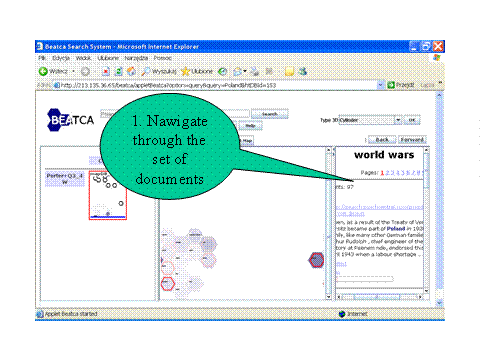
The information area (to the right) may display either the list of documents relevant to a cell - upon clicking this cell in the map area, or, if the number of associated documents is large, it may display a hierarchy of documents ("Growing Neural Gas" or GNG hierarchy).
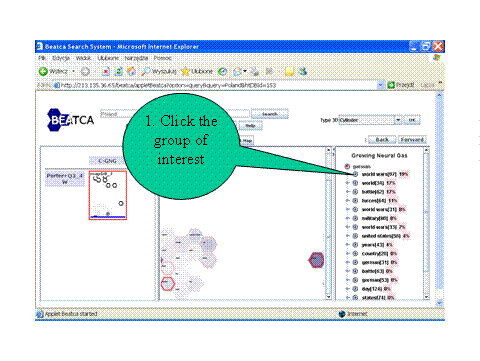
If you have clicked a document map cell (in the central part) and the number of associated documents is large (that is the number of doxcuments generally, not necessarily connected with your query), then in the information area (to the right) you will see a hierarchy of documents ("Growing Neural Gas" or GNG hierarchy, or a WebSOM hierarchy, depending on the technology of map creation), where you should pick out one of categories. If you pick out one category from the GNG list, then in the map area a lower level map will be displayed (in the map area), describing the selected category.
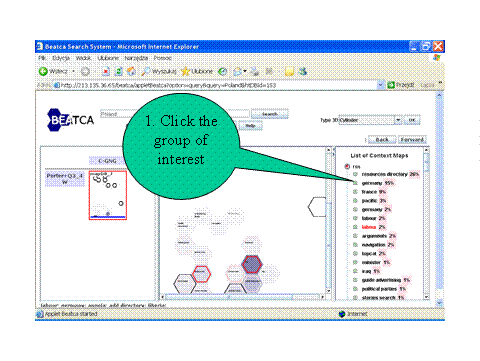
If you pick out one category from the GNG list, then in the map area a lower level map will be displayed (in the map area), describing the selected category. You may now repeat the process of drilling the cells of a document map, seeing their respective concept hierarchies in the information part.
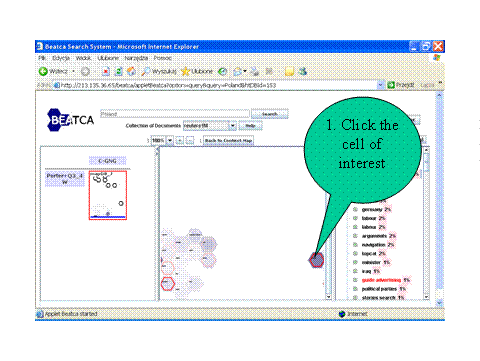
Clicking again into neural gas groups may lead not to a new map, but rather to the assigned list of documents.
In the control area (at the top) you see buttons marked with [+] (for zooming in) and [-] (for zooming out). You can also click the window with inscription 100% and you will get a list of choices of the zoom-in/out scale possibilities.
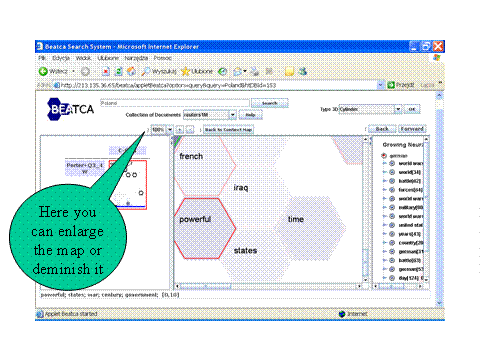
If you want to move the map around, press the mouse over a cell and move if around. Upon releasing the mouse button, the map will shift to a new location.
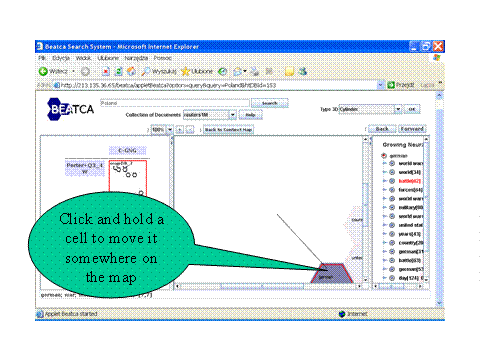
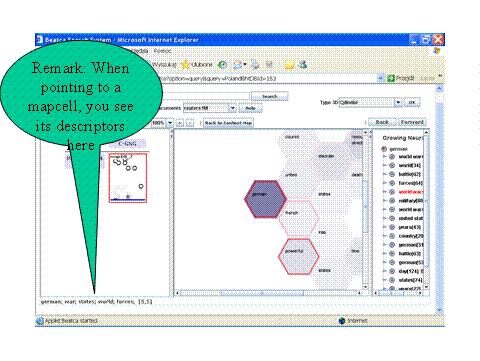
If you move the mouse over a cell, a few most descriptive terms for this cell will occur at the bottom of the screen.